 Figment
Upload HTML. Share a website.
Your page is ready on your computer. Put its HTML, CSS, JavaScript, and images online with Figment.
Check my HTML filesFree file check. No sign-in. Sign in to save a preview.
Use your own AI for free edits. No Figment AI credits or API key needed.
BEFORE YOU UPLOAD
One file or a whole folder
Start with index.html at the top level. Select the files together, or select a folder to keep its subfolders and file paths. Unzip an archive before you select it.
- Up to 100 files, with a maximum of 2 MiB per file.
- Up to 10 MiB for the complete upload.
- Built browser files. No ZIP files, server code, or secrets.
From files to a live link
Select your files
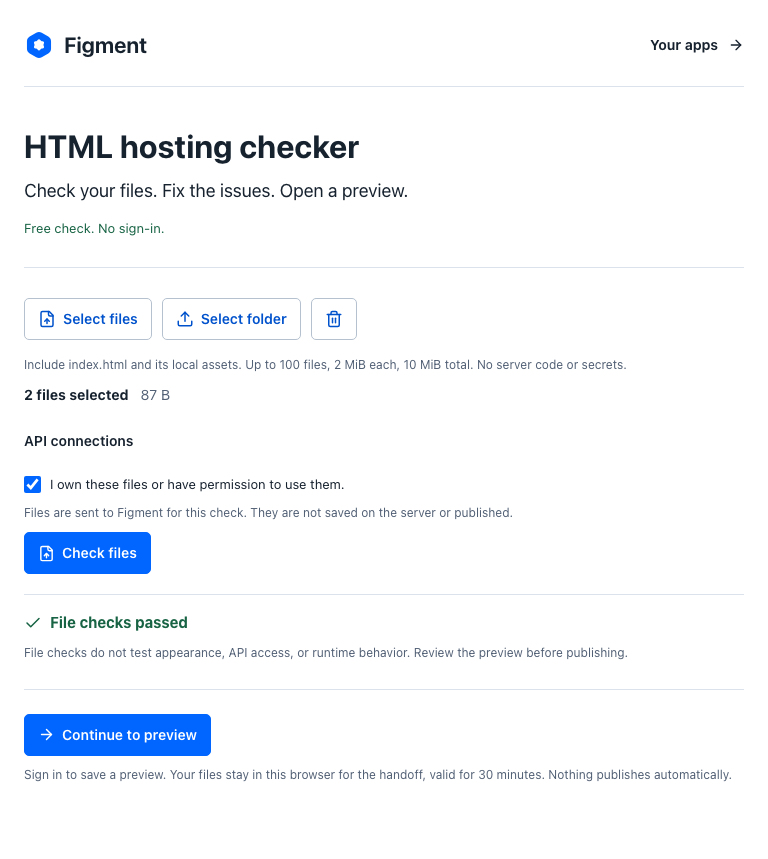
Open the checker and choose your files or folder. Include the local images, fonts, styles, and scripts that index.html needs.
Fix issues and preview
The checker reports missing files and hosting limits. After the check, sign in to save a preview. Test the actual page before you publish it.
Publish when ready
Approve your preview to publish a public link. Upload a new version later, or use your own AI to change the files. New edits stay unpublished until you approve them.
Before you publish
Can I upload a React or Vite project?
Upload its built output, usually the dist folder, with index.html at the top level. Figment does not run npm install or build your source project.
Does uploading make my files public?
The file check does not publish your files or save them on the server. Saving a preview requires sign-in. Previews are unlisted and shareable, not password-protected. Do not include secrets or private information.
Will forms, logins, and payments work?
Uploading files does not create a backend, database, login system, or payment service. A browser app can use an existing API only with explicit HTTPS origin settings and browser CORS support. Test every external service.
What is free?
File checks, previews, and editing with your own AI are free. You do not need a Figment subscription or AI credits for those edits. Your AI provider may charge separately. Storage and hosting limits apply. Ask about hosting limits for your project. Figma publishing plans are separate from HTML app hosting.
Can I edit a website that is already online?
Yes, through a separate import workflow. Import a copy of your website. Your original hosting stays unchanged. A copy does not transfer its backend, accounts, or payment system.
Will people find this link in search?
Figment tells search engines not to index hosted HTML apps. This workflow is for sharing a link, not for a search-indexed business website.
Can I include booking or payment tools?
A normal link to your existing provider can work. Embedded tools, iframes, external scripts, remote images, and form submissions are blocked by the app hosting policy. Include local images in your upload. Test links to external services before you share the page.